
Getting the APK onto your TV
Download the Cinemana for Android on your phone from the download page, then send it to the TV with a file-sharing app like Send Files to TV, or copy it to a USB drive. On the TV, open the file with a file manager and allow installs from that manager when asked. The steps mirror the phone install guide, just with a bigger screen. The same Cinemana APK file works on phones, tablets, and TV boxes.
Navigating with a remote
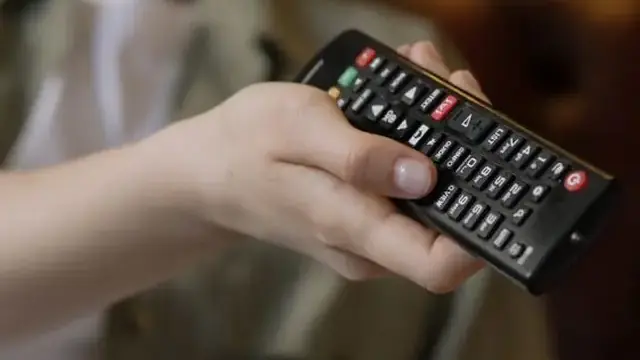
The app was designed for touch, so a plain D-pad remote works but feels slow on long poster grids. An air mouse, or the remote app on your phone, makes scrolling the catalog far more pleasant. Alternatively, skip sideloading entirely and cast from your phone: you browse on the touchscreen and the TV just plays.
Settings worth changing
On a TV, bump the player quality up: the big screen shows compression that a phone hides, so the quality settings matter more here. Also confirm the Cinemana app has storage permission on the TV, or posters will load blank. If your TV box is old and slow, keep background apps closed while watching.